

Using the password change service from within the Institute network
To use the password change service from within the institute network, perform the following:
- Load the password management page in your browser.
- Should a window pop up with the message Your password will expire soon, select the Password Change option.
- Enter your user ID and password in the relevant fields on the main screen, and click Log In.
- Complete the password change procedure until you receive system confirmation of a successful change.
- Synchronization of the new password in your smartphone mail app (Apple Mail or Outlook) may take up to 10 hours. During password synchronization, mail apps will continue to function as normal. Once completed, you’ll be requested to enter the new password.
Important notes:
- On entering the new password entry window, the password change procedure can no longer be stopped. You must complete it to avoid having your account blocked.
- Macintosh users are required to complete the password change procedure on all of their devices (stationary computers, laptops and tablets), and in all applications accessed via the account with the relevant user ID. For assistance, use the following resources:
- Synchronization of the new password in your smartphone mail app (Apple Mail or Outlook) may take up to 10 hours. During password synchronization, mail apps will continue to function as normal. Once completed, you’ll be requested to enter the new password.
- Should you happen to be outside the Institute network with your personal computer, connect to the Institute network via VPN (Check Point or F5) prior to performing the steps detailed above.
Using the password reset and change service outside the Institute network
To use the password reset and change service outside the Institute network, perform the steps detailed below.
Verifying the validity of your personal cellular number
To verify the validity of your personal cellular number (for subsequent receipt of authentication codes during password reset procedures), perform the following:
- Ensure that you are connected the Institute network, whether directly of via VPN (Check Point or F5).
- Verify and update your personal cellular number, if necessary.
- Enter your user ID and password on the screen that loads, and select Update Your Details on the menu.
- Should your personal cellular number be owned by the Institute, verify its validity in the WIS Cell Phone field. Should the number be invalid, contact the Telephony section and request to have it updated.
- If your personal cellular number is in your private ownership, verify its validity in the Cell Phone field. Should the number be invalid, update it in this field and save the change by clicking Apply Changes.
Resetting and changing the password
To reset and change the password, perform the following:
- Verify that you are neither connected to the Institute network nor connected to it via VPN.
- Load the authentication page in your browser.
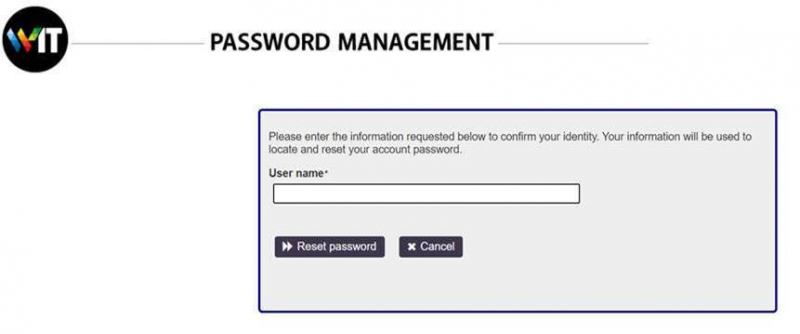
- Enter your user ID and click Reset password to proceed to the authentication screen.
- Click the SMS button and enter the authentication code received on your smartphone via SMS.
- Following authentication code entry, complete the information authentication confirmation procedures.
- Complete the password change procedure until you receive system confirmation of a successful change.
Important notes:
- On entering the new password entry window, the password change procedure can no longer be stopped. You must complete it to avoid having your account blocked.
- To complete updating the local password with a new one on PCs, connect your Institute computer to the Institute network
at the earliest opportunity (whether from within the network or via VPN). At this point, lock the computer by pressing
Windows + L, and log back into it with the new password, following which the password change procedure will be complete. - Macintosh users are required to complete the password change procedure on all of their devices (stationary computers, laptops and tablets), and in all applications accessed via the account with the relevant user ID. For assistance, use the following resources:
- Synchronization of the new password in your smartphone mail app (Apple Mail or Outlook) may take up to 10 hours. During password synchronization, mail apps will continue to function as normal. Once completed, you’ll be requested to enter the new password.
For your information, Institute systems, the access to which is dependent on the password you are required to define and refresh once every 6 months, are:
- Exchange mail
- Tafnit
- IS (Internal Services)
- Centrally managed Unix/Linux systems
- NFS (Unix/Linux) high capacity storage services
- iFolder (versions 2.x and 3.x)
- NetStorage
- Secure wireless access
- DAPSAS Bio Informatics
- HPC WEXAC cluster
- ADSL
- Exchange Archive
- OneDrive
- Collaboration
- Home Folders
- DropBox
- Box
- StorWIS
- Office 365
- Weizmann Net
- EREZ
Password reset on user account lockout/blocking
For your convenience, we provide both a service for resetting passwords within the Institute network and a service for resetting passwords outside the Institute network.
Select Password Reset in the relevant service, and perform the exact same steps detailed above for resetting and changing passwords outside the Institute network.
If the new password you defined is not be accepted by any Institute system, or should you require any other assistance, please contact the Service Desk (you may also get in touch with us by dialing extension 4444).