
Windows Installation
Windows Installation and Usage via Client
To connect to the Weizmann internal network using the full VPN client, follow these steps:
- Download the VPN client installation file and run it.
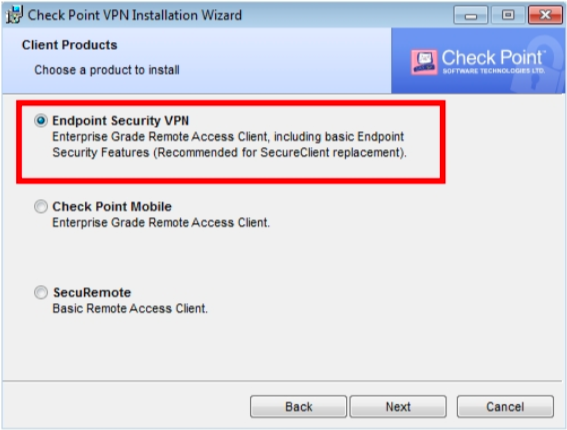
- In the installation wizard, choose Endpoint Security VPN.
- In the destination folder window, proceed with the defaults and click Install.
- When prompted to restart your computer, save all open documents and click Yes to restart.
- Following the restart, double-click the yellow lock icon in the taskbar.

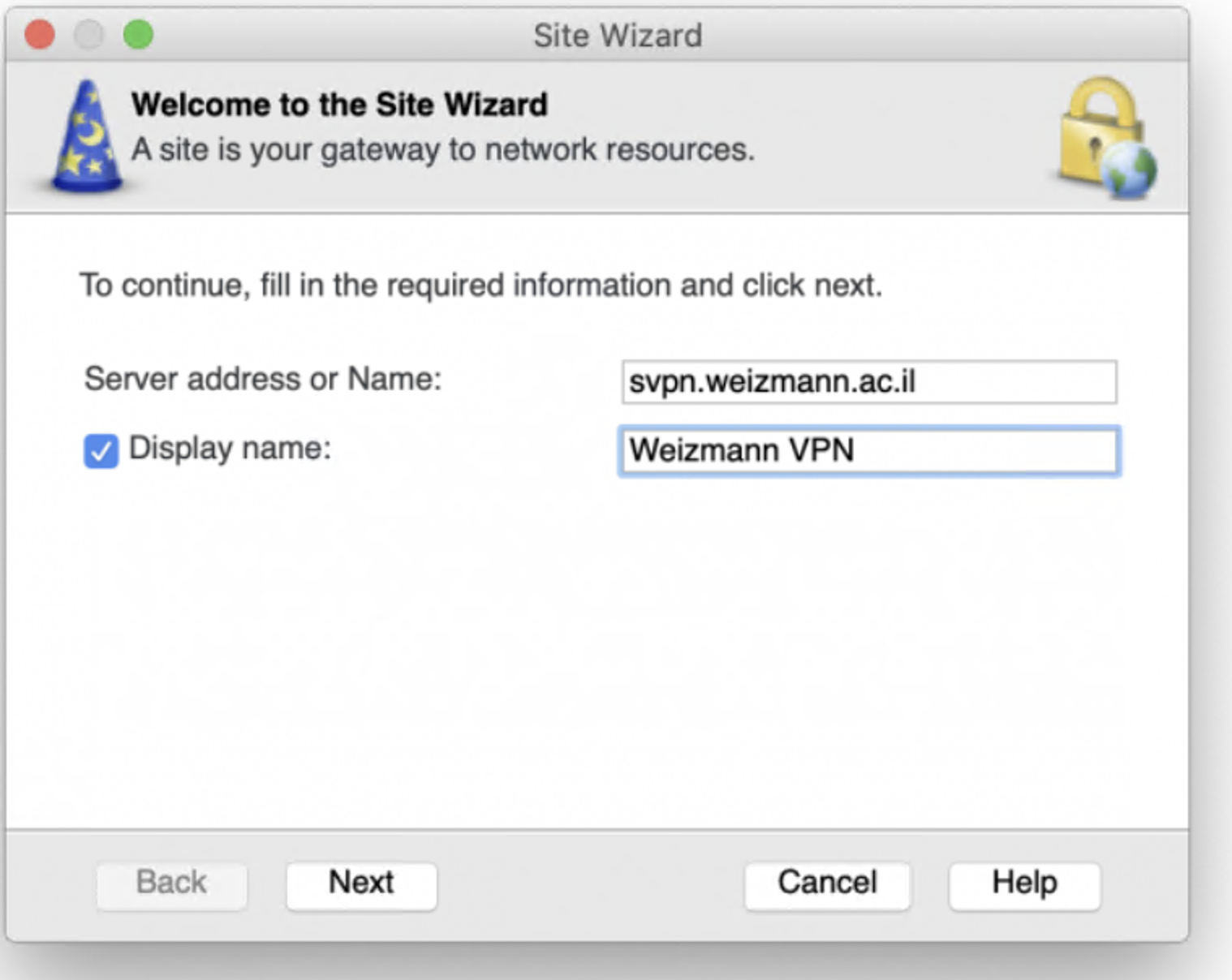
- In the window that appears, click Yes to configure a new site, then click Next.

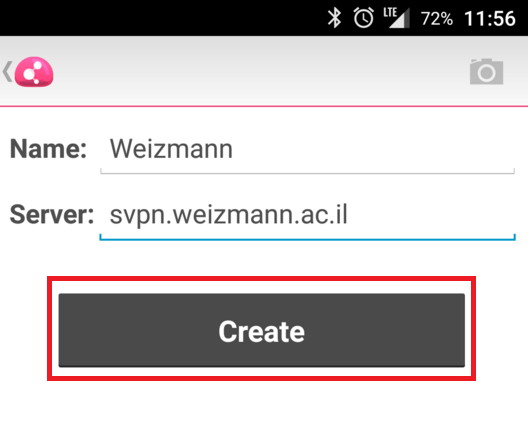
- Enter svpn.weizmann.ac.il in the Server address or Name field, then click Next.

- When requested to choose an authentication method, select SecurID, then click Next.

- Select Use Pinpad card when requested to select the SecurID authentication device, then click Next.

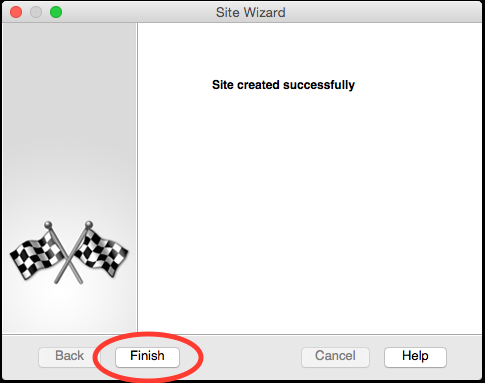
- Click Finish to complete the installation.
- When presented with the Would you like to connect dialog, click Yes.
- Enter your Weizmann user ID in Username field, and the 8-digit token in the Tokencode field (to acquire the correct 8-digit token code, be sure to insert your PIN code in the Weizmann Authentication field in the RSA app).
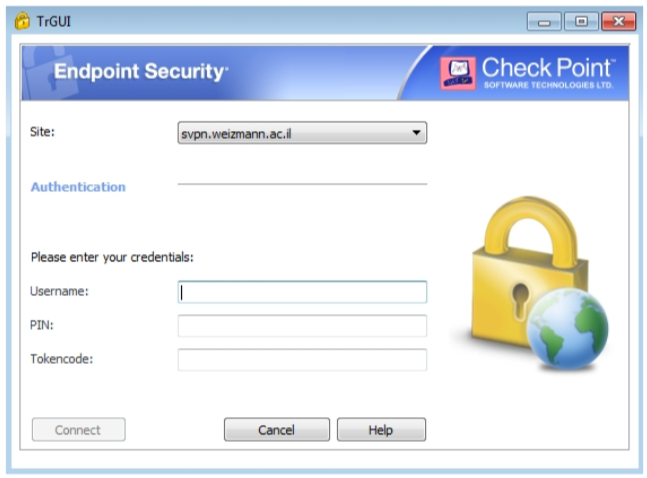
- Click Connect. The green lock icon in the taskbar will show a green dot on successful connection.

Windows Installation and Usage via Chrome
When accessing the Check Point VPN software for the very first time via Chrome, you are required to perform the following:
- Install/update Java software version 8 (see additional information further down this page).
- Access svpn.weizmann.ac.il in Chrome.
- Select Standard Sign In and enter your Institute user ID and password (from the RSA app).

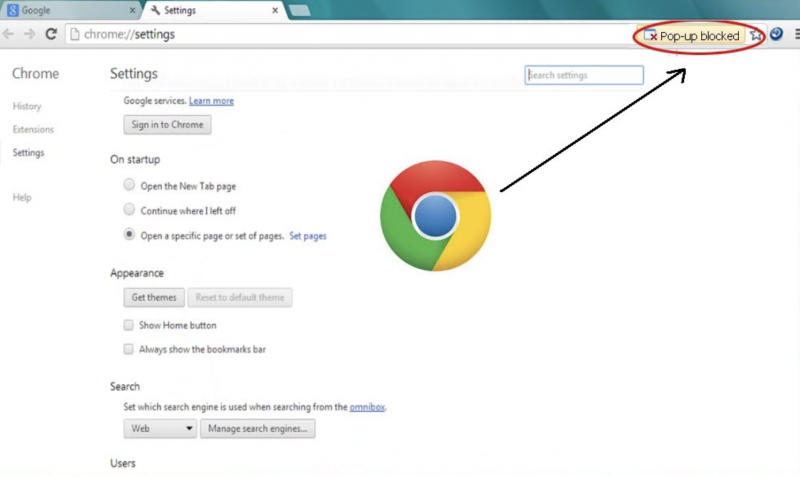
- Allow pop-up windows in the page that opens.
- In the window that appears, click the link highlighted below to download the Check Point Mobile agent .msi update installation file, then run it.

- Wait for installation to complete, then click Yes, Trust server and Yes in the three consecutive confirmation dialogs that appear, respectively.


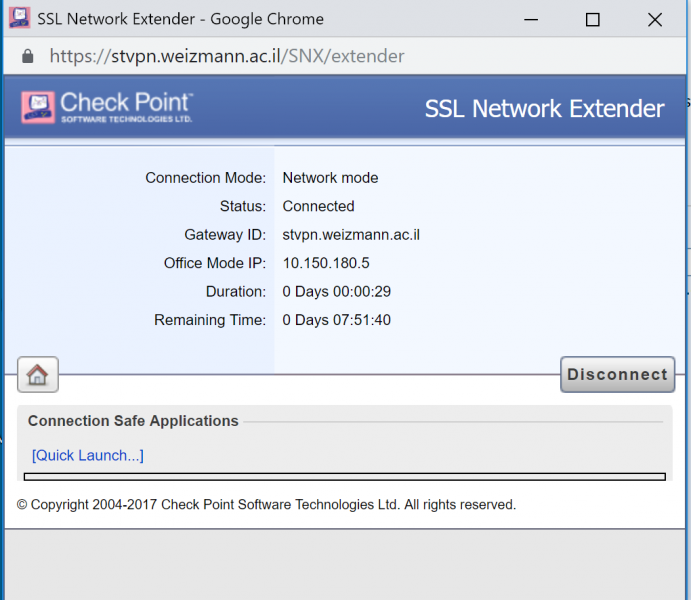
- On successful connection, the status indicated in the pop-up window will change to Connected.

















 ) and access the Content tab.