
Check Point VPN 2021 Update
Starting January 1, 2021, Remote Client VPN and Endpoint Security Client versions E81.10 and lower may stop functioning, with upgrades failing and requiring a patch.
Target Users
This information is applicable to Windows users.
Installation Instructions
To install the latest version, perform the steps detailed below.
Step 1 - Downloading Check Point VPN E84.30
Download the VPN client .msi installation file. Note the location, at which you save the downloaded .msi file, and do not proceed to run it at this time.
Step 2 - Removing the Currently Installed Version
To uninstall the currently installed Check Point VPN Client version:
- Click the magnifying glass near the Start button (
 ), enter Control Panel in the search field, and click the Control Panel search result.

- In Control Panel, click Programs and Features.

- In the list of installed programs, right-click Check Point VPN and click Uninstall.
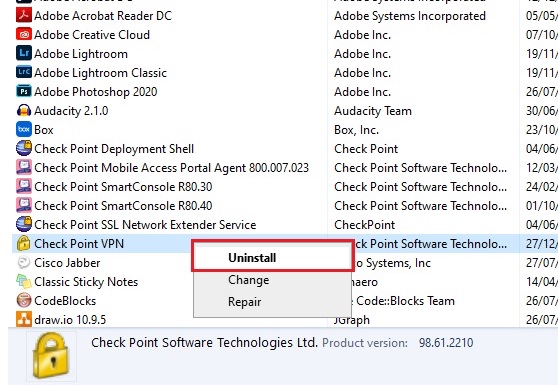
- Click Yes to confirm that you wish to proceed with uninstallation.

- Click Yes to allow the installer to make changes.

- Click Yes to restart your computer for changes to take effect.

Step 3 - Installing the New Version
To install the latest Check Point VPN Client version:
- Run the file downloaded earlier (E84.30_CheckPointVPN_WithProfile.msi).
- When running the installer outside the Weizmann campus, you may be presented with the window shown before. If this is the case, click More info.
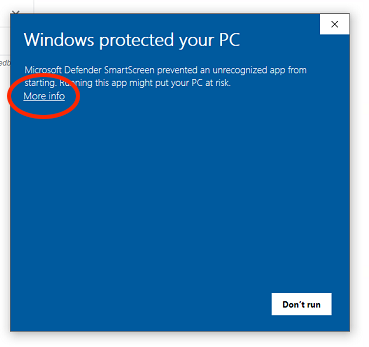
Click Run anyway when presented with the Windows Defender SmartScreen notification below.

- Click Next on the Check Point installation wizard.

- Ensure that I accept the terms in the license agreement is selected, then click Next.
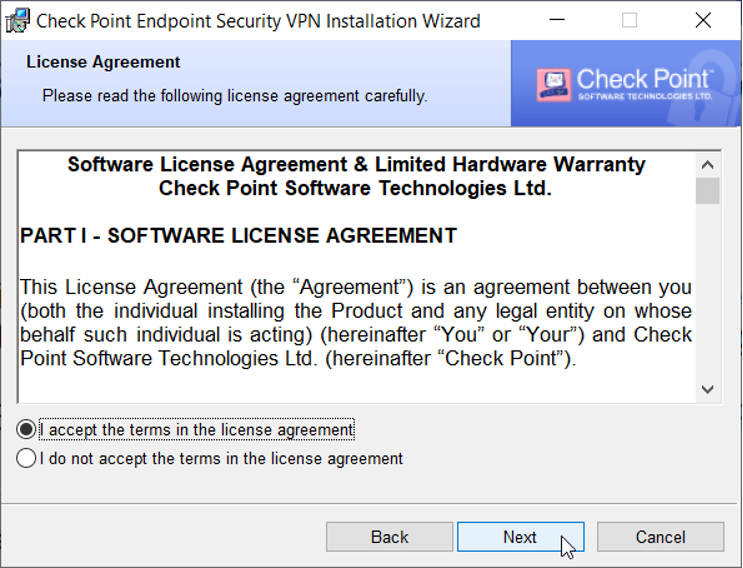
- On the the destination folder selection window, click Install.

- Click Yes to allow the installer to make changes and proceed with installation.
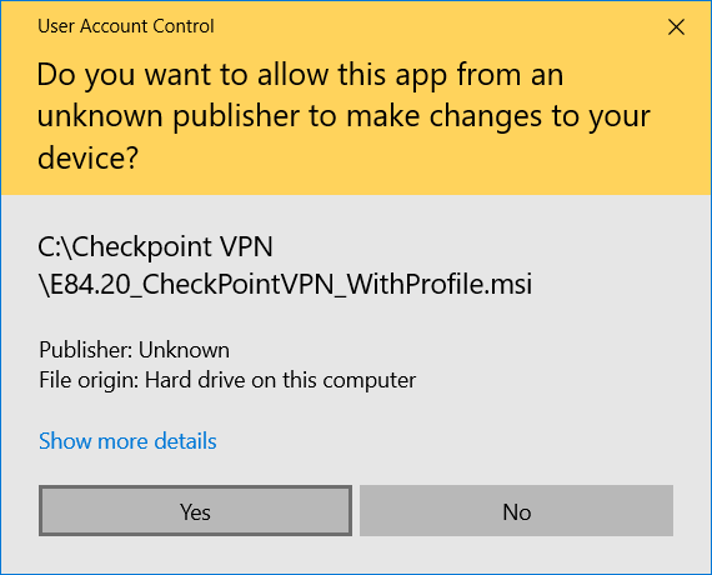
- On installation completion, click Finish.
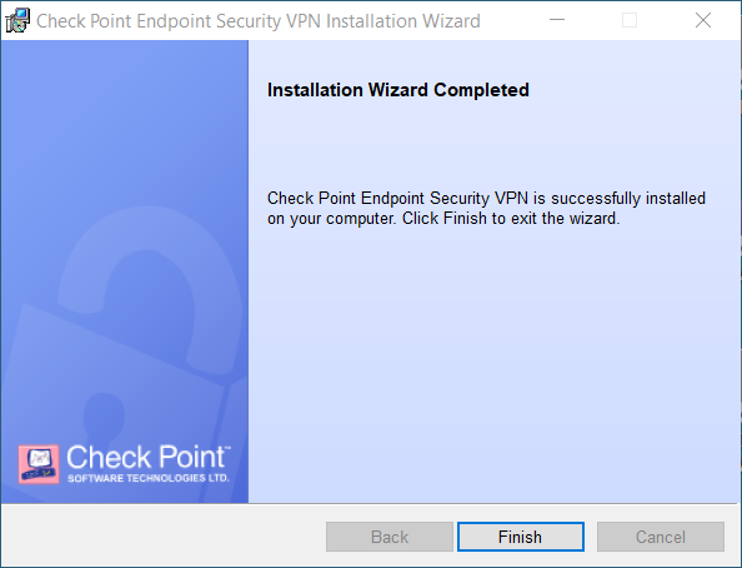
- At this point, you may be prompted to restart your computer. Save all open documents and click Yes to perform the restart.
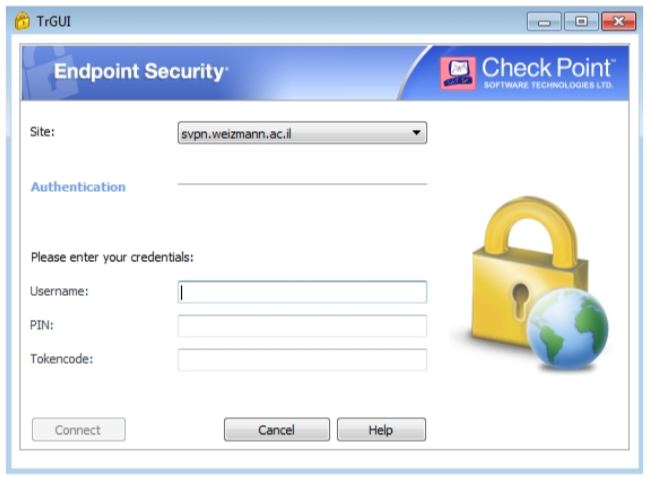
- Note to users outside the Weizmann network: connect to the VPN to ensure that the process was successful. To do so, enter your Weizmann user ID and your 8-digit token in the Username and Tokencode fields, respectively, then clicking Connect. The green lock icon on the taskbar will feature a green dot to indicate successful connection.
For more information, review the Check Point article on this issue.
Contact: