You may gain access to the Institute network for remote work on your Windows-based computer via the F5 Client VPN service.
To connect from afar via the F5 Client VPN, perform the following:
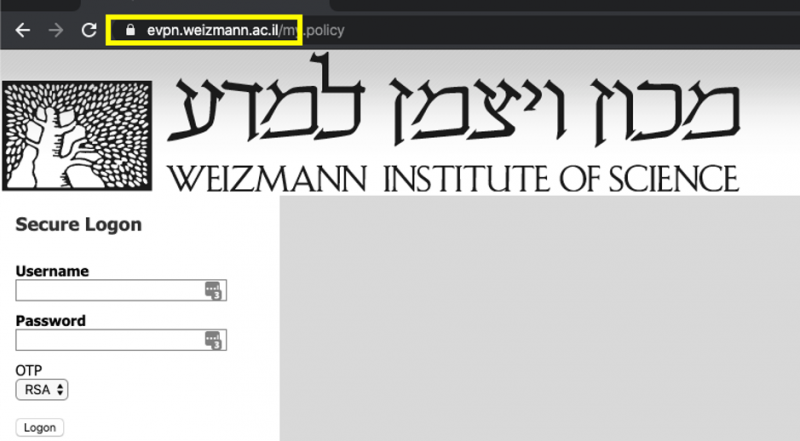
- Use your browser to access https://evpn.weizmann.ac.il.
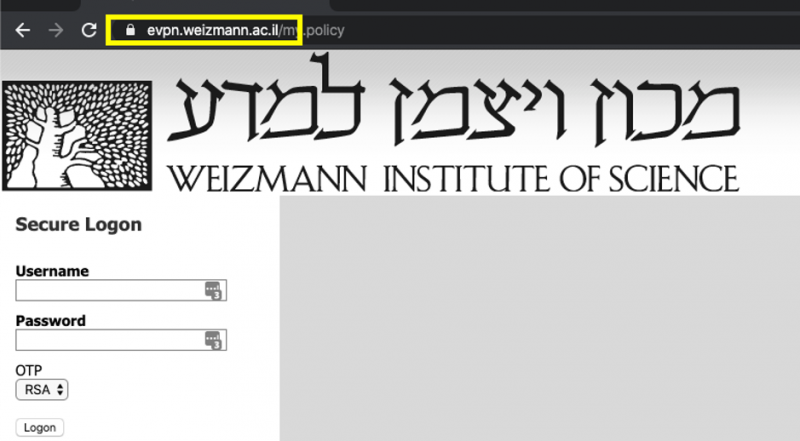
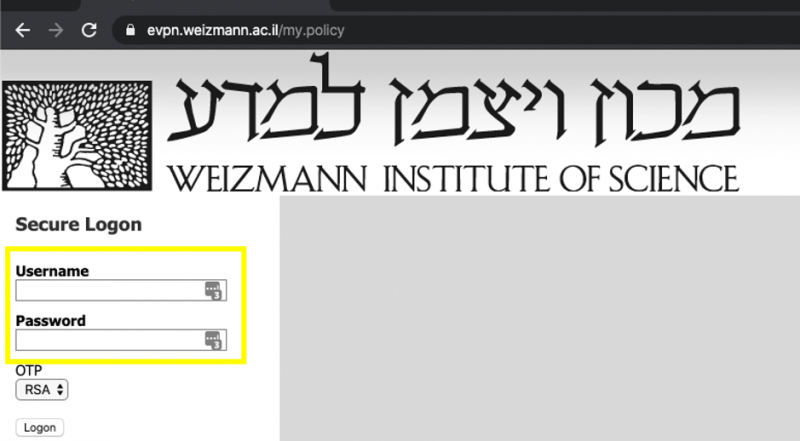
- Enter your user ID and password on the page that loads.

- Select the desired method to receive an OTP (One Time Password) – via SMS or RSA token, and click Logon.

- Enter the one time password received via the selected method, and click Logon.

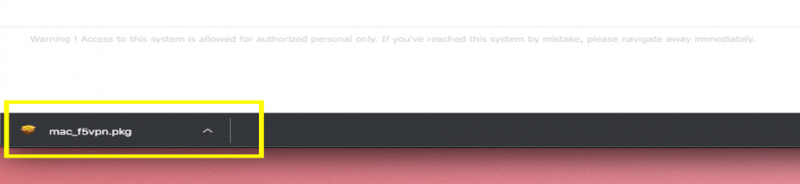
- Click Download in the window that appears.
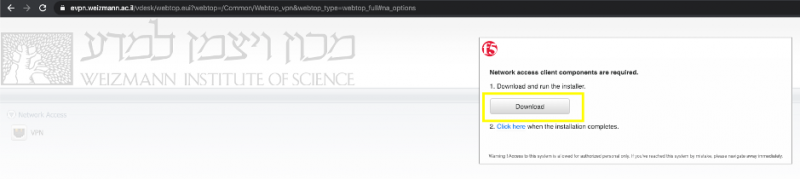
- When the download finishes, double-click the f5vpn_setup.exe file with your mouse.

- When requested to provide administrator permission for the installation, click Continue.

- Click Yes in the next window that appears to continue the installation.

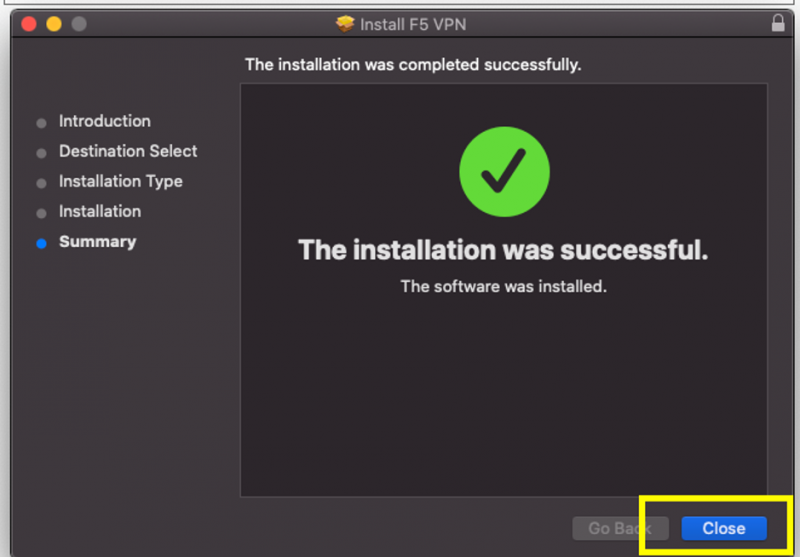
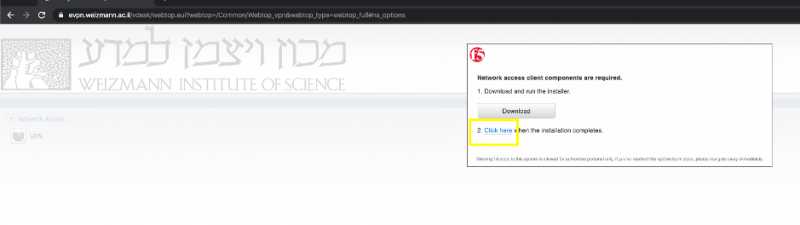
- On completion and termination of the installation application, click Click here to connect.
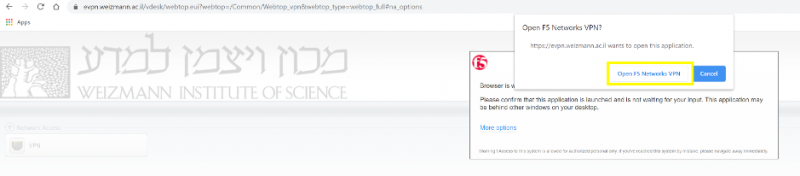
- In the window that pops up (with Open F5 Networks VPN in its title bar), click Open F5 Networks VPN.
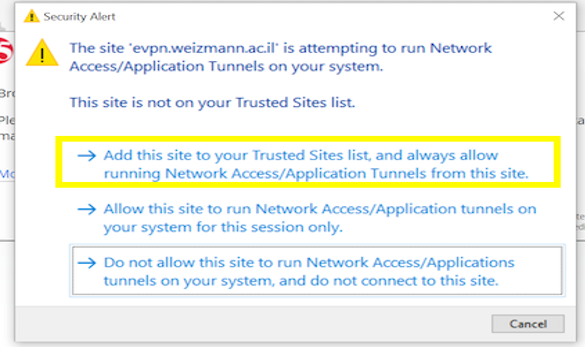
- Click the Add this site to your Trusted Sites list… option to confirm that you trust the target site.
- Click Yes in the next window.

- On conclusion of the installation, click Yes again in the next window to initiate the connection.

- When your work is finished, double-click the F5 VPN icon in the Windows task bar’s notification area.

- To disconnect from the network, click Disconnect in the window that appears.